
Appearance
Transactions
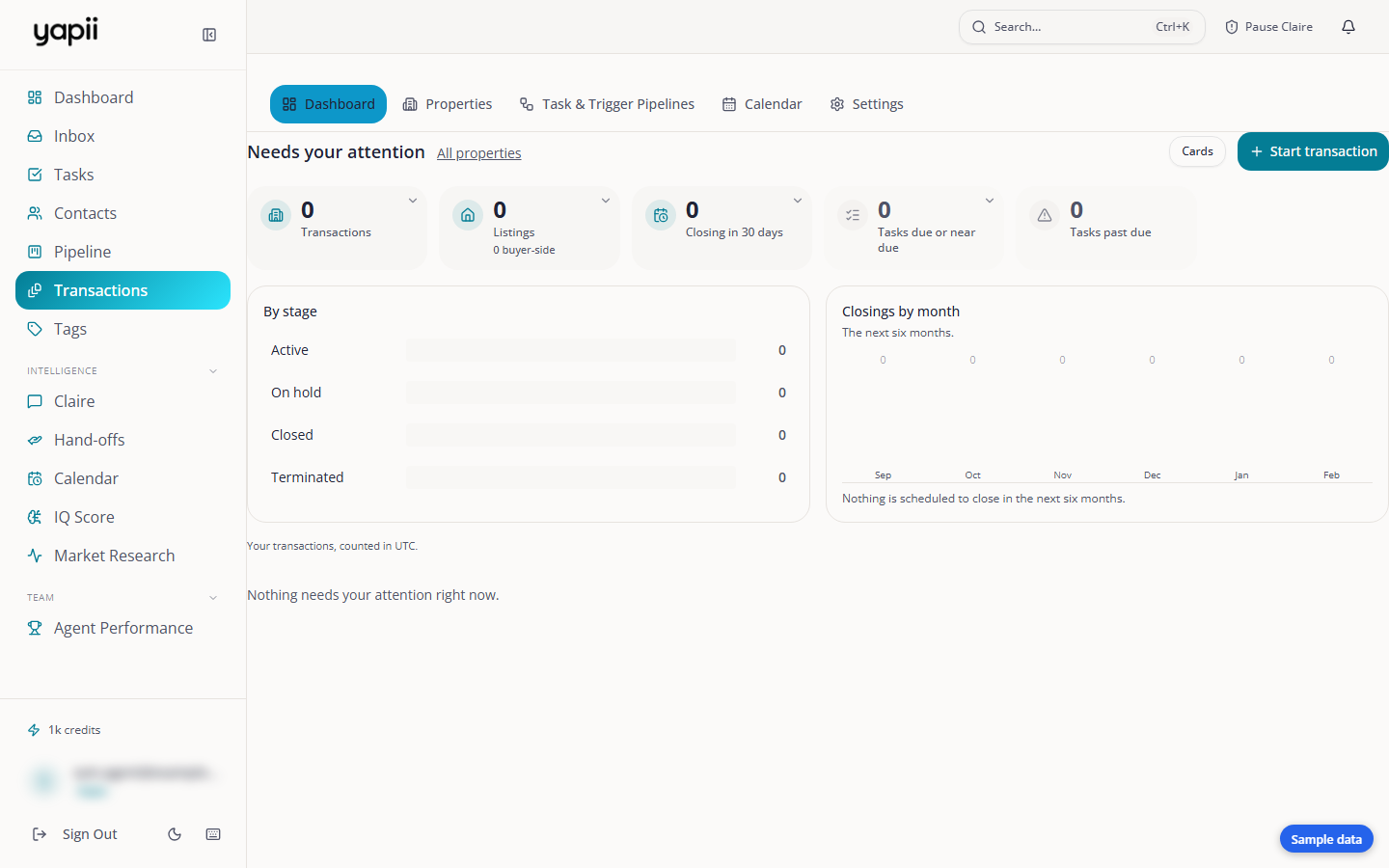
Transactions keeps each deal under contract organized: the signed documents, checklists, key dates, the people involved and the money. It's a paid add-on. If your workspace has it, Transactions appears in the sidebar.
The Transactions pages
| Page | What it's for |
|---|---|
| Dashboard | What needs your attention today across all your files. |
| Properties | Every transaction in a table you can search, sort and arrange. |
| Calendar | Key dates for every file. |
| Pipelines | Your transactions by stage. |
| Settings | Templates for checklists, tasks, documents and commissions. |
Starting a transaction from the signed contract
The quickest way to start a file is to drop in the signed purchase agreement.
- Open Transactions and click Start transaction.
- Drag the signed agreement onto the drop area.
- Yapii reads the document and suggests key details:
- the property address;
- contract and closing dates;
- purchase price;
- earnest money amount and due date;
- commission.
- You see only the details that differ from what's on the file, each with a checkbox. Tick the ones that are right, then apply them.
You confirm, Yapii doesn't guess
Nothing Yapii reads from a document is saved until a person ticks it, however sure the reading looks. Always check dates against the contract.
Yapii can only read documents that contain real text. A scanned image of a page can't be read; you'll see a message explaining why, and you can fill in the details by hand.
Starting a transaction by hand
In the same dialog, fill in:
- the title or address;
- the contact;
- the price;
- the side: buyer, listing or both;
- the contract and closing dates.
You can also turn an existing deal into a transaction.
What Yapii sets up for you
When a transaction starts, Yapii adds:
- a checklist of documents you'll need;
- tasks, with due dates counted from the contract or closing date. Weekends and US federal holidays are skipped.
The tasks also appear on your main Tasks page, labeled with the property.
Inside a transaction
A transaction page brings together:
- People: buyers, sellers, lender, title, the other agent and your teammates.
- Documents and the checklist.
- Tasks, including dependencies ("3 days after inspection") and sub-tasks.
- Timeline: the dates that can hold up closing. That's the contract, earnest money, each contingency (pending, met, waived or missed), and closing.
- Money: price, commission and splits.
- Emails, texts and notes.
- Fields: every detail about the deal, grouped into sections.
Your view and the workspace's fields
- How you see a file is personal. You can hide, reorder or collapse sections, and it changes nothing for anyone else.
- Which fields exist (their names, types and options) is shared by the whole workspace. Only owners and admins can change it, in Transactions Settings.
Yapii starts every workspace with a full set of standard fields, which you can rename, hide or add to.
Health and alerts
Each file has a health rating based on its checklist, documents, contingencies, tasks and closing date:
| Rating | Meaning |
|---|---|
| On track | 80 or above. |
| Needs attention | 60 to 79. |
| At risk | Below 60. |
Yapii also watches every active file around the clock and alerts you, in the app and by email, when:
- a deadline is approaching;
- a party or the lender has gone quiet;
- title hasn't been ordered;
- an inspection period is about to expire;
- earnest money hasn't been confirmed.
Who sees which transactions
Owners and admins see every file. Agents see files they own, and files where they've been added as one of the people on the deal.
Moving from Open To Close
Owners and admins can import files from Open To Close. Running the import again is safe: Yapii matches files it already has and only fills in blank details.