
Appearance
Pipeline
The Pipeline shows your contacts by stage, such as New Lead, Active Client and Under Contract, so you can see where everyone is and move them along.
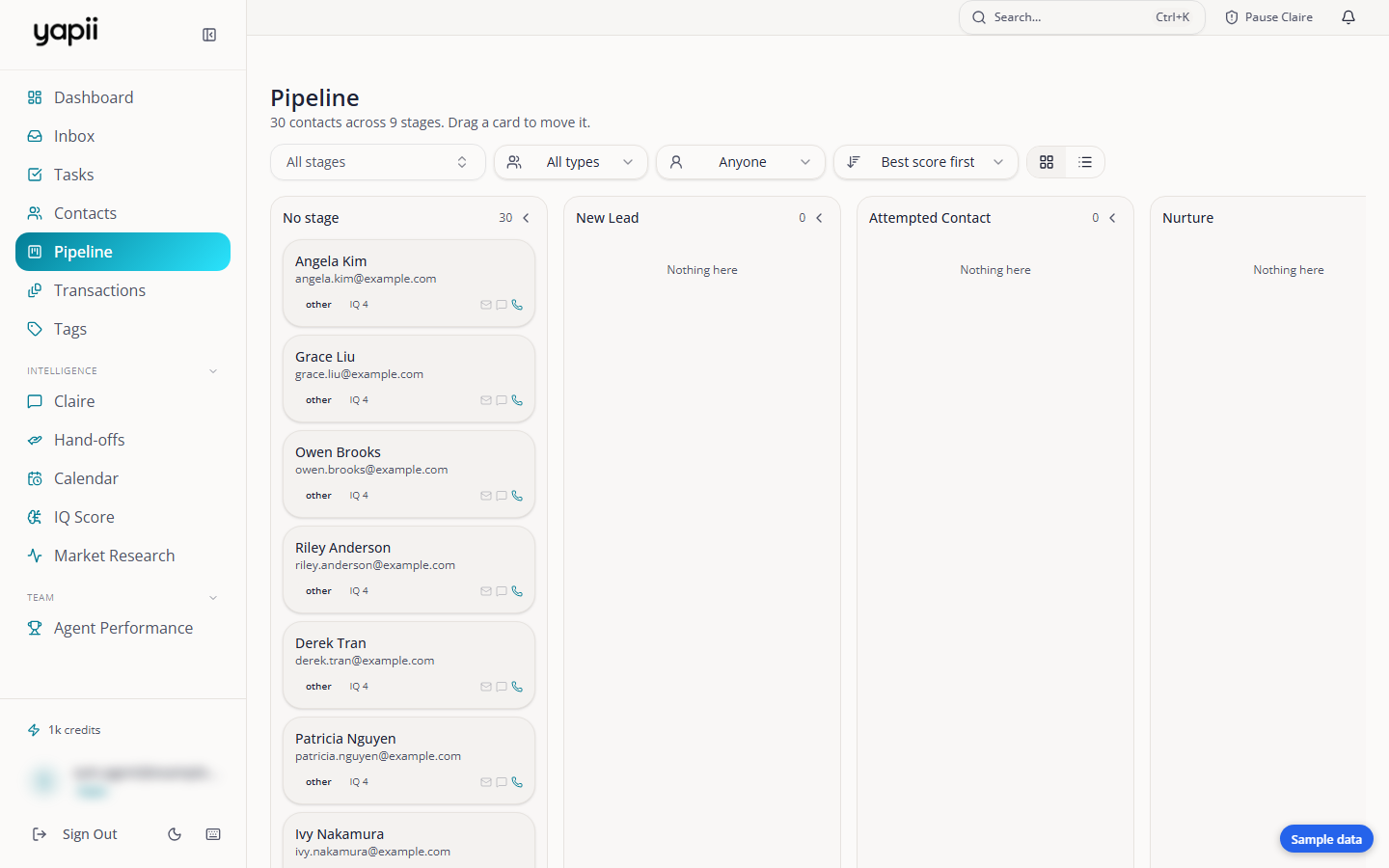
Board and list
- Board view: a column for each stage, plus No stage first. Each card shows the contact's name, email, lead type, IQ score, next follow-up (red when overdue) and whether you can reach them by email, text or phone. Each column shows 20 cards; click + N more to see the rest as a list.
- List view: a searchable table you can sort by name, stage, type, IQ score or follow-up date.
At the top you can filter by stage, lead type and, in team workspaces, by who a contact is assigned to. You can also sort the board, for example "Best score first" or "Follow-up due first".
Yapii remembers your view and sort choices on that computer.
Moving a contact
Drag the card to another column. The change is saved immediately, and you have 10 seconds to undo it.
Moving a contact to a new stage can set other things in motion, such as:
- starting or stopping a sequence your workspace has linked to that stage;
- starting milestone reminders when a contact goes Under Contract.
Changing the stages
Owners and admins
Click Edit stages to add, rename, reorder or remove stages.
If you remove a stage that still has contacts in it, Yapii asks where to move them first. Stages that came from your CRM show a from CRM label.
Pipeline or Transactions?
The Pipeline tracks contacts. Deals under contract, with their documents, checklists and key dates, live in Transactions (an add-on).