
Appearance
Finding your way around
Yapii has three parts on screen:
- the sidebar on the left, where you move between pages;
- the top bar, with Claire's pause button and your notifications;
- the main area, which shows the page you're on.
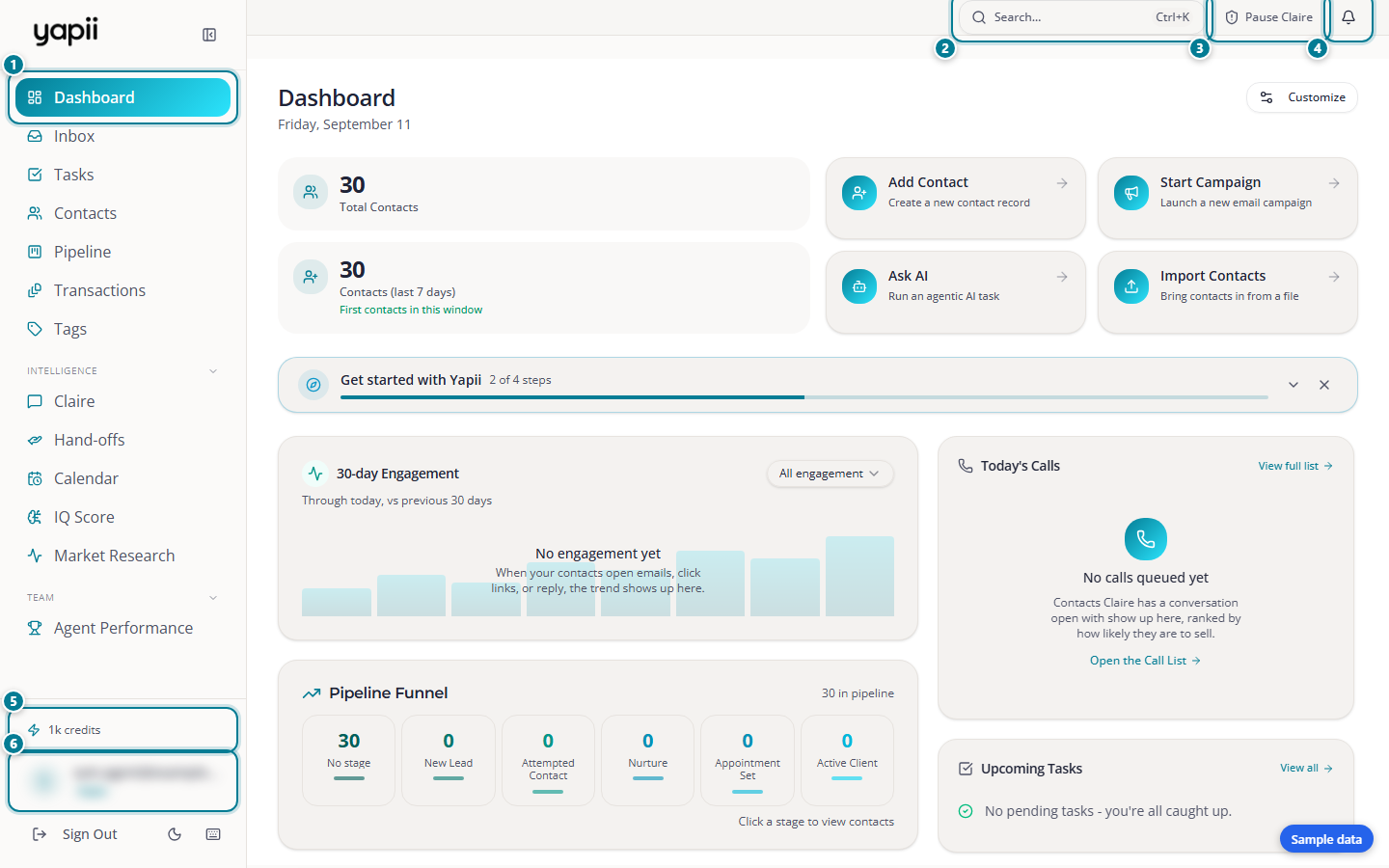
- The left menu: every part of Yapii, in the same order as this guide.
- Search: find a contact, a page or an action. Press Ctrl+K from anywhere.
- Pause Claire: see Approving, pausing and taking over.
- Notifications
- AI credits: how many you have left.
- Your profile
The sidebar
What you see in the sidebar depends on your role and your workspace. Here is the full list for a real estate workspace.
Everyday pages (top of the sidebar)
| Page | What it's for |
|---|---|
| Dashboard | Your daily overview: who to call, what's due, what Claire did. See Dashboard. |
| Inbox | Every text, email and call with your contacts. See Inbox. |
| Tasks | The calls, texts, emails and to-dos you owe people. See Tasks. |
| Contacts | Your whole database. See Working with contacts. |
| Pipeline | Your contacts by stage, as a board you can drag. See Pipeline. |
| Transactions | Files for deals under contract. Only shown if your workspace has the Transactions add-on. |
| Tags | Every tag in your workspace. |
Intelligence
| Page | What it's for |
|---|---|
| Claire | Your AI assistant's conversations and settings. See Meet Claire. |
| Hand-offs | Leads Claire has passed to a person (team workspaces). See Hand-offs. |
| Calendar | Appointments Claire booked plus any you add. See Calendar. |
| IQ Score | Your top opportunities and how warm your database is. |
| Market Research | Market data and trends for any neighborhood or ZIP code. |
Team
| Page | Who sees it |
|---|---|
| Team Dashboard, Team Activity, My Agents | Managers, admins and owners in team workspaces. |
| Statistics | Owners and admins. |
| Agent Performance | Everyone. It shows where each person stands on calls, texts, appointments and deals. |
Workspace (owners and admins)
Settings, Notifications, Alerts and, on Builder plans and above, Branding. Agents reach their own notifications from the bell in the top bar.
Lender workspaces
Lender workspaces have a different sidebar: Homeowners, Refinance Pipeline and Rate Emails replace the selling tools.
Making the sidebar smaller
You can collapse the sidebar to a narrow strip of icons and expand it again. Yapii remembers your choice on that computer.
The bottom of the sidebar
- Your name: click it to open your Profile, where you change your details and your password.
- Light or dark mode.
- The question mark: opens the Help & FAQ page.
- The keyboard icon: shows keyboard shortcuts. You can also press ? anywhere.
The top bar
- Pause Claire: stops all of Claire's outreach at once. See Approving, pausing and taking over.
- The bell: your notifications. A number shows how many are unread.
Search from anywhere
Press Ctrl+K (Cmd+K on a Mac) on any page. A search box opens that finds contacts, transactions, teammates and help answers, and lists shortcuts such as Create new Contact and Help & FAQ. Use the arrow keys and Enter to choose, or Esc to close it.
Switching workspaces
If you belong to more than one workspace, a workspace switcher appears at the top of the sidebar. Choose a workspace to move into it.
On a phone
Tap the menu button to open the sidebar. It also has Help & FAQ, Sign out and the light or dark switch.