
Appearance
Tags
Tags are labels you put on contacts, like "Hot Lead" or "First-Time Buyer". Use them to find a group of people quickly, and to send a campaign to everyone with a tag.
Open Tags from the left menu.
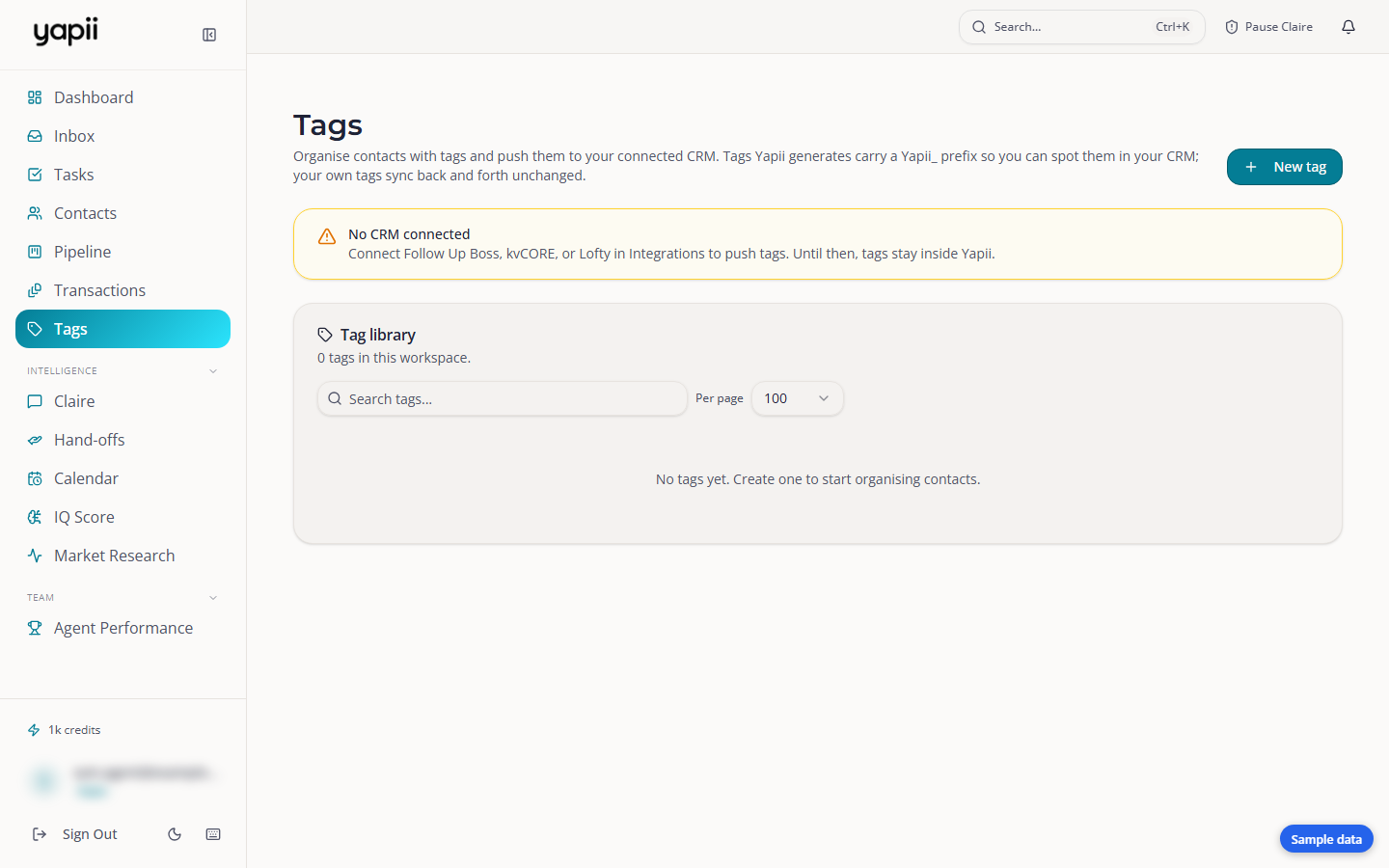
What's on the page
- Tag library: every tag in your workspace, with how many contacts have it. Search with the box at the top, and choose how many tags to show per page.
- Suspected duplicate tags: tags that only differ by capital letters, like "hot lead" and "Hot Lead". Click Merge to combine them.
- No CRM connected: if you haven't connected Follow Up Boss, kvCORE or Lofty, your tags stay inside Yapii. Connect your CRM under Settings, Integrations to send them there too.
Tags that Yapii creates itself start with Yapii_, so you can tell them apart from your own.
Creating a tag
- Click New tag.
- Give it a name and save it.
Adding a tag to contacts
- Find the tag in the list and click Contacts.
- Tick the contacts who should have the tag, and untick anyone who shouldn't.
- Click Save.
You can also tag people from a contact's page or from your contacts list. See Working with contacts.
Seeing who has a tag
Click the number in the Contacts column. A panel opens with everyone who has the tag. From there, click Create segment from this tag to save them as a group you can come back to.
Sending to everyone with a tag
- Click Send next to the tag.
- Pick a draft campaign. Only draft campaigns that already have content are listed.
- Confirm, and the campaign goes to everyone with the tag.
Be careful
Sending reaches everyone with the tag. Click the tag's contact count first to check who that is.
Renaming, merging and deleting
- Rename (pencil icon): renames the tag on every contact.
- Merge (merge icon): moves everyone to another tag, then removes this one.
- Delete (bin icon): removes the tag from every contact.
- To delete several tags at once, tick them and click Delete selected.
Be careful
If a CRM is connected, renaming, merging and deleting change your CRM too. Deleting can't be undone.
Good to know
- Duplicate detection and the merge list only look at the tags on the page you're viewing. If you have a lot of tags, show more per page.
- If a tag's cloud icon is grayed out, either no CRM is connected or nobody has that tag yet.