
Appearance
Calendar and appointments
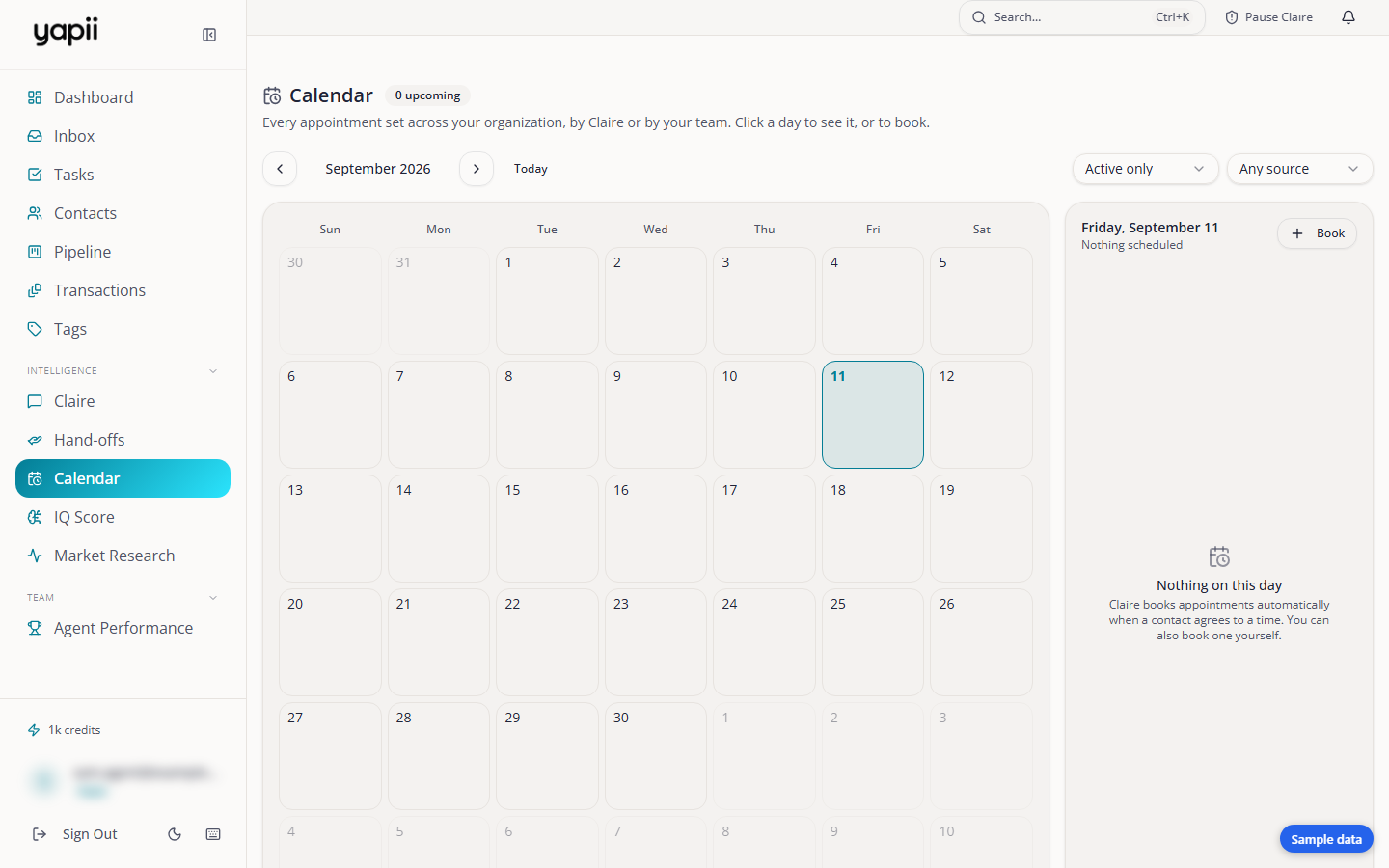
The Calendar shows appointments with your contacts: the ones Claire booked, and any you add yourself.
Around the Calendar
- A month view, with the selected day's appointments beside it.
- Calendars: your workspace can keep several named calendars and show or hide each one. Only owners, admins and team leads can create, rename or delete them.
- Transactions: if your workspace uses Transactions, the list of calendars also has a Transactions entry. It puts the dates from the files you work on the Calendar: deadlines, dated tasks, and date fields set to show on the calendar. It's shown unless you untick it.
- Connected calendars: if you've connected a Google or Outlook mailbox with calendar sync on, its calendars are listed here too. Untick one to hide its events. When an event's title names one of your contacts, the event has an Open link with that contact's name, which takes you to their page. It only links when exactly one contact you're allowed to see fits the name.
- Filters:
- Status: shows active appointments by default.
- Agent: when your team has more than one person.
- Source: Booked by Claire or Added by hand.
- A count of upcoming appointments.
If your filters hide everything on the day you picked, the panel says Nothing on this day matches your filters with a Reset filters link that puts Status, Agent and Source back to their defaults.
Whose appointments you see
Owners, admins and team leads see the whole workspace's calendar. An agent (a member) sees only their own appointments by default, the ones where they are the agent. An owner or admin can switch the whole-workspace calendar on for one member if they need it. Either way, you only see appointments for contacts you're allowed to see.
Booking an appointment
- Choose a day and click Book.
- Search for the contact, give the appointment a title, and choose the time, length and where it happens.
- Save.
Yapii won't let two appointments overlap for the same agent. If there's a clash, it says That time is already booked, and you pick another time. Claire is the one who suggests other times, when she's booking for a lead.
Booking by hand also lets you go outside your available hours, so you can take a meeting that doesn't fit your usual week.
Inviting team members
When you book, Invite team members (optional) lets you search for teammates who are coming to the meeting and add up to 20. Nobody you pick is notified. It is a record of who from the team was there, and it fills the Team column on the Appointments report in Reporting.
On an appointment that is already booked, press Invite team (or N invited once someone is on it) to open Team on this appointment. Add or remove people under Invited team members and press Save. The appointment then shows a line such as "Team: Dana Lee, Sam Ortiz". If the change could not be saved, Yapii says so rather than showing it as saved.
When an appointment is booked, changed or canceled:
- the contact gets a text if they agreed to texts, otherwise an email;
- the agent is notified in the app and by email, and so is the workspace owner.
The agent's email is meant to be enough to act on without opening Yapii. A booking email gives:
- With: the contact's full name, plus their Phone and Email when Yapii has them (a cancellation leaves these out);
- Agent: whose appointment it is;
- Where: the place you gave. For an in-person appointment with no place, Yapii uses the property address it has on file for that person;
- Calendar: whether it will reach your connected calendar. It says Will be added to your connected calendar within a few minutes, or plainly NOT on your calendar if sync is off or no calendar is connected;
- for an in-person appointment Claire booked, a short prep brief from what she learned about the person and their home. Lines she has nothing real to say about are left out, and an equity figure that looks implausible for the home's value is left out too.
On each appointment you can Confirm or Cancel.
Appointments Claire books
Claire books an appointment when a lead clearly confirms a time in their own words. It goes on the calendar of the agent the lead is assigned to, as long as they're still on the team, so it uses that agent's hours and sends that agent the notifications. If the time isn't clear, she asks for one. She only books inside your availability, and never for the same day. Each booking also creates a hand-off so you know about it.
On a call she offers time with someone from the team, not the owner by name, and says every time on the lead's own clock without naming the zone. Before she tells a lead they are booked, Yapii reads the appointment back to make sure it was saved. If it was not, she promises a text instead and leaves a follow-up task for a person, and the conversation is not closed as booked. The reminder email about promised appointments that still need a call lists each person once, however many times she offered them a slot.
Reminders and no-shows
- Contacts who agreed to texts get a reminder text the day before and another 2 to 4 hours before the appointment. Reminders are texts only, so a contact with no phone number or no texting consent gets none.
- Yapii no longer marks an appointment as a no-show on its own. If it is still marked as scheduled 30 minutes after it ends, its status becomes Result needed, which says that nobody has recorded what happened yet. The no-show status is set only when a person records it.
Recording how an appointment went
A result is what happened at the meeting. It is one of Showed, No-show, Rescheduled, and Listing signed (or Buyer agreement signed for a buyer meeting). Showed and the signed results mark the appointment completed. Rescheduled gives it the Rescheduled status, so it is not counted as a meeting that was held.
Owners and admins can also set these up in Settings, under Appointments, in the Results and assignment card (only owners and admins can change it):
- Ask the agent for the result is off to start with. When it is on, the agent who had the meeting gets an email, a push notification and, if they turned texts on, a text when it ends, with one-tap buttons for each result. They do not need to sign in.
- Task the coordinator when no result comes in is on to start with. If nobody has recorded a result by 9 am the next morning (your workspace's time), the appointment coordinator, or the owner when there is none, gets a task to find out. The task closes itself when a result is recorded.
On the Appointments page you can filter by the Result needed and Rescheduled statuses.
Assigning an agent and getting them to confirm
Claire's bookings are written to the owner. If you pick an Appointment coordinator in the same card, Yapii makes sure each booking reaches a real agent:
- The coordinator is alerted when Claire books and chooses an agent from Assign an agent on the appointment. The coordinator, owners and admins see that menu on upcoming appointments.
- A booking with nobody assigned shows Needs an agent. If nobody assigns an agent within an hour, the owner is alerted too.
- The agent you assign is emailed the details with a Confirm button. Until they confirm, the appointment shows Not confirmed. If they have not confirmed two hours before the start, the coordinator and the owner are told. Moving the appointment asks for confirmation again.
- With no coordinator chosen, bookings stay with the owner, as before. If the coordinator you chose is no longer an active member, the card says so and bookings stay with the owner.
Two more switches, for texts to the lead around a meeting, are in Claire's settings, on the Follow-ups tab, in the After an appointment card.
Your availability
Your available hours decide when appointments can be booked, including by Claire.
- Your own hours: set them on your Profile, in My appointment hours. Everyone can do this.
- The workspace default: owners and admins set it in Settings, under Appointments. It applies to anyone who hasn't set their own hours.
Hours are set in whole hours, with shortcuts such as weekdays or weekends.
You only see appointments for contacts you're allowed to see, and the same goes for booking, changing and canceling them (see Who sees which contacts).
Connecting Google or Outlook
Two-way calendar sync starts off for a new connection. To turn it on, open Settings, then Email & Sending, and switch on Two-way calendar sync on your mailbox. It brings your calendar into Yapii and writes appointments booked in Yapii back to it. Turn it off and nothing more is written to your calendar.
Your Google or Outlook calendar
If you connect your Google or Outlook mailbox, Yapii reads your calendar. Your existing events count as busy time, so Claire doesn't book over them.
When Yapii puts an appointment on your Google or Outlook calendar, it never adds the lead as an attendee, so the lead does not get a calendar invitation from Google or Outlook. Only appointments that are still to come are sent, and an event that has not changed is not sent again.