
Appearance
Tasks
Tasks is your to-do list: the calls, texts, emails and other things you owe your contacts.
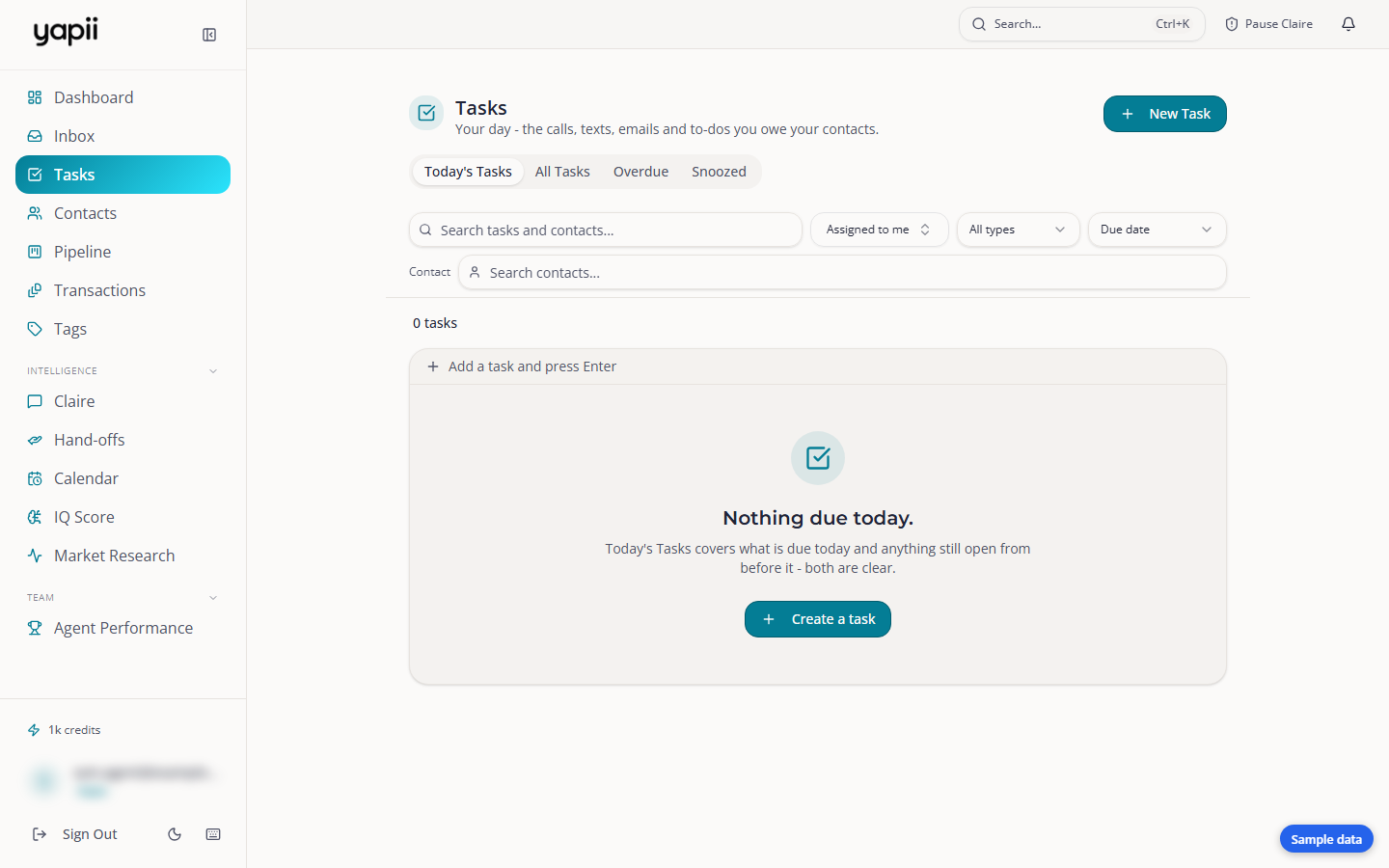
Around the Tasks page
- Tabs: My Tasks, All Tasks, Overdue, Snoozed.
- Due filters: All, Today, This Week, No Due Date.
- Type filter: Call, Text, Email, To-do.
- Search by title, notes or contact name.
Tasks are grouped by when they're due: Overdue, Today, Tomorrow, This week, Later and No due date. Due dates read in plain words, such as "3 days overdue".
Adding a task
- Click to add a task, from the Tasks page or a contact's page.
- Give it a title and choose its type: Call, Text, Email or To-do.
- Pick a due date. Shortcuts such as Today, Tomorrow and Next week save typing.
- Link it to a contact, and assign it to yourself or a teammate.
Getting tasks done
- Complete a task to tick it off. It's noted on the contact's timeline. Repeating tasks create their next copy automatically.
- Snooze a task: Tomorrow morning, In 3 days or Next week. Snoozed tasks come back at 8 AM in your workspace's time zone.
- Drag tasks to reorder them, or select several and update them together.
Tasks from other places
- Transactions: checklist tasks for a deal show on Tasks too, labeled with the property.
- Follow Up Boss: if your workspace pushes next steps to Follow Up Boss, tasks you create in Yapii are copied there.
- Claire: when a lead asks for a call at a certain time, Claire creates a high-priority call task for that time, assigned to the agent.
Who sees which tasks
Normally you see tasks you created or that are assigned to you. In workspaces where leaders see everyone's contacts, owners, admins and managers can read everyone's tasks. Only the creator or the person assigned can change a task.