
Appearance
Dashboard
The Dashboard is where your day starts. It shows who to call, what's due and what's been happening, all on one page.
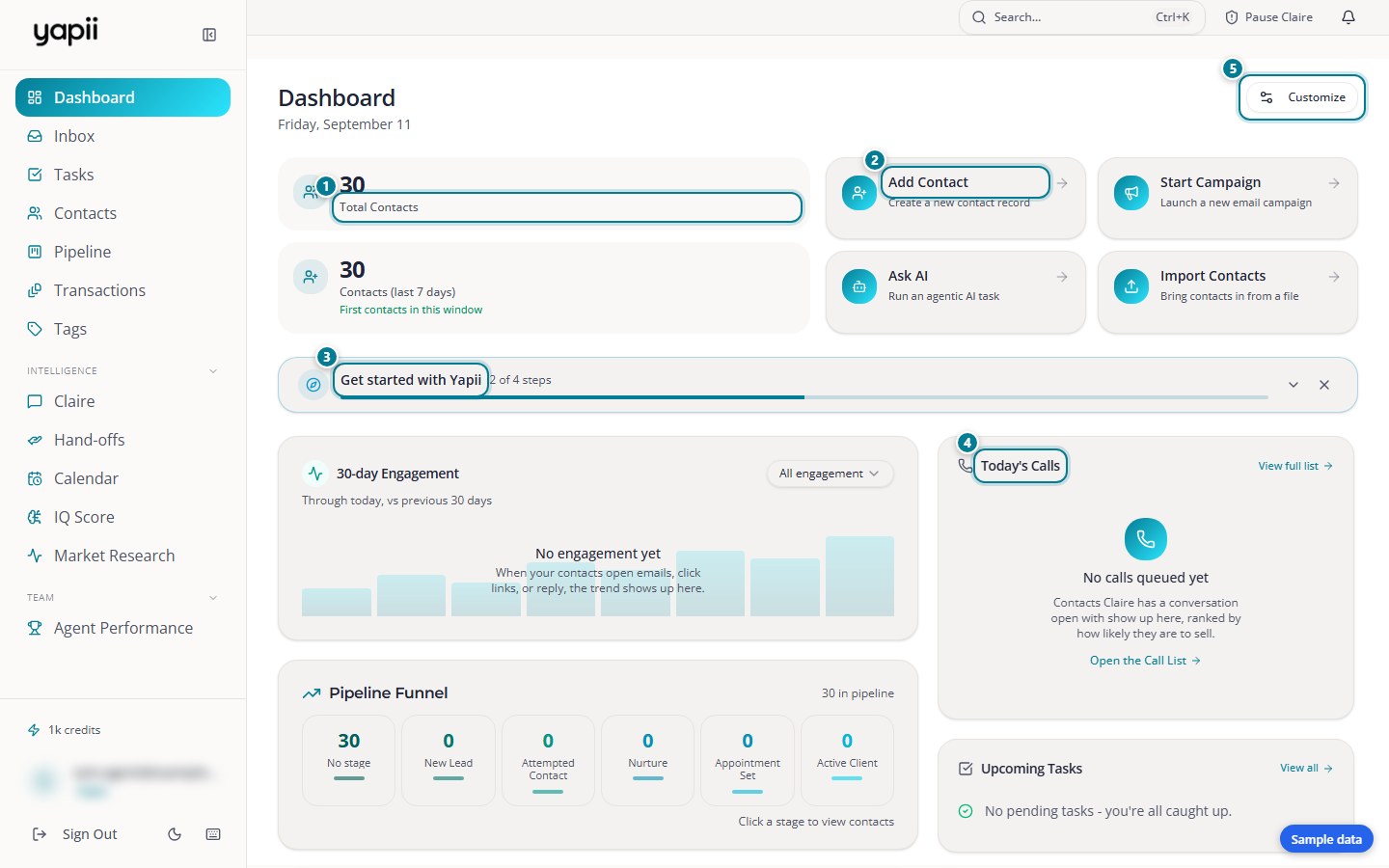
- Your numbers: total contacts, and how many were added in the last 7 days.
- Quick actions: add a contact, start a campaign, ask AI or import contacts.
- Setup checklist: shows until you've finished setting up.
- Today's calls: who to call today, best first.
- Customize: drag the cards into the order you like.
At the top
- Total contacts, and how many were added in the last 7 days compared with the week before.
- Quick actions for common jobs.
- The setup checklist, until you've finished setting up (see Your first day).
The cards
| Card | What it shows |
|---|---|
| Today's calls | Your call list for today, best first. It picks from your contacts that Claire is actively working and ranks them by IQ score, fresh activity and deals that need attention. |
| Upcoming tasks | What's due soon. Tick tasks off right here. |
| Top opportunities | Your five highest IQ scores. |
| Recent activity | What's been happening: emails, dashboard visits, texts, calls, tasks and notes. The Needs attention tab shows overdue tasks, hot contacts, stalled work and unanswered replies. |
| Engagement | How active your contacts have been over recent weeks. |
| Pipeline | How many contacts are in each stage. |
| Claire | What Claire has been doing. |
| Consent | How many contacts have agreed to calls and texts, and how many have opted out. |
| Home value outreach | How the monthly home value email is going: who's due, who's been sent it, and why some can't be sent (for example, a missing address). |
| Intelligence reports | Monthly reports about your database (owners and admins). |
Working your call list
For each contact on Today's calls you can:
- call them;
- log how it went: connected, left voicemail, no answer, wrong number, do not call, or follow up;
- snooze them for 1 to 30 days;
- mark them done for today.
Each weekday morning you also get your call list by email.
Make it yours
Click Customize to drag the cards into the order you like, then Done. Reset layout puts them back. Your layout is saved for you only.
Whose numbers am I seeing?
Most cards follow your workspace's contact visibility setting (see Who sees which contacts). Today's calls and overdue tasks are always your own.