
Appearance
How new leads arrive
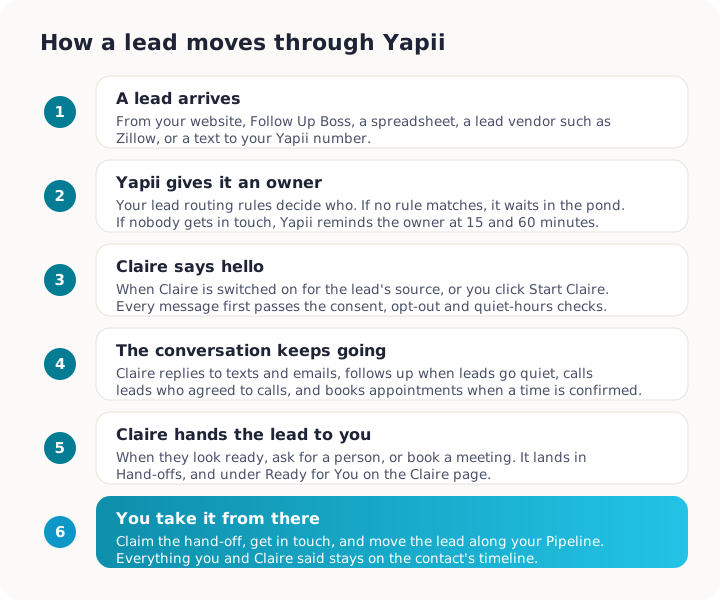
A new lead can reach Yapii in several ways. Whichever way it comes in, Yapii gives it an owner, and depending on your settings it may start a follow-up sequence and have Claire say hello.
Where leads come from
| Source | How it gets into Yapii |
|---|---|
| Your website forms and landing pages | Someone fills in a Yapii form or landing page. Their consent to be contacted is recorded from the form. |
| Follow Up Boss | New people in Follow Up Boss sync into Yapii automatically. |
| Spreadsheet imports | Contacts you upload (see Importing contacts). |
| Lead vendors | Tools such as Zillow, Realtor.com or Landvoice can send leads to a Yapii web address your admin sets up. |
| Portal lead emails | Lead emails from portals such as Zillow or Realtor.com can be turned into contacts. There are two ways to get them in: see Lead emails from your portals. |
| Texts from unknown numbers | Someone texts your Yapii number and isn't a contact yet. Yapii creates a contact for them. |
| You | You add a contact by hand. |
Lead emails from your portals
Portals such as Zillow and Realtor.com email you when a lead comes in. Yapii can read those emails and turn them into contacts. There are two ways to set it up, and you only need one per portal.
| Way | How to set it up | How quickly it arrives |
|---|---|---|
| Your Yapii lead email address | Settings, then Integrations, then the Lead sources tab. Copy the Lead email address and paste it into the portal's own lead notification settings, or forward to it from your mailbox. Owners and admins only, because the address is a credential. | Straight away |
| A Gmail label | Settings, then Email & Sending. Connect Gmail, then under Turn a label into a lead source choose the label your lead emails land in. You can add more than one. | Checked every 5 minutes |
Pick one path per portal
If the same lead email reaches Yapii two ways at once, for example through both the lead email address and a Gmail label, the two can race and create two contacts.
Connecting a mailbox does not by itself create leads. Nothing in a connected mailbox becomes a contact until you name a label, and nothing is chosen for you. An inbox receives far more than leads, so this starts off.
More than one label. Pick a label from the list and Yapii lists it under "New mail from unknown senders in these labels becomes a lead". Pick another from Add another label... to watch it as well, for example one label per portal. The cross beside a label stops watching it, and Turn all off, shown once you have two or more, stops them all. You can also create a new label from the same card.
Outlook. The Outlook card under Email & Sending does not offer a lead folder. For portals that email an Outlook mailbox, forward their lead emails to your Yapii lead email address instead.
Only mail that arrives is read. Messages you sent are ignored, so a reply of your own never becomes a lead. If the sender is already a contact, the email goes on their timeline instead of making a second record. A lead needs an email address or a phone number, so a name on its own is not enough, and if Yapii cannot read a message it tells you rather than guessing.
Leads that arrive by email are assigned, not worked
A portal lead email gets an owner through your routing rules, and there it stops. It does not start a campaign or an automation, and it does not arm Claire. Nobody in a forwarded portal email agreed to hear from you, so Yapii treats it as assignment only. Choosing the lead source does not change this. Put these people on a campaign or start Claire yourself once you know they are happy to hear from you.
What happens next
1. The lead gets an owner
If your workspace has lead routing rules, Yapii uses them to decide who gets the lead. If no rule matches, and your All other leads rule has nowhere to send it, the lead waits in the pond (unassigned) where agents can claim it. A lead that already has an owner is never reassigned.
A contact you add by hand is different. If your workspace has no routing rules yet, or the rules ran and picked nobody, that contact is assigned to you. This is so the person you just typed in is still there when you click on them, instead of sitting in a pond you can't see. If a rule does match, the rule wins: a lead sent to a named pond, or put out for first to claim it, stays that way.
Owners and admins
Set up lead routing in Settings, under Leads, on the Routing tab.
A rule can match on Source, Lead type, State, City, Zip code, Tag, Email, Phone or Price. Each test can be "is any of", "is none of", "is more than", "is less than", "is filled in" or "is blank".
It then shares leads out in one of three ways:
- Evenly, in turn (round robin): each agent takes the next lead, so everyone ends up with the same number.
- By share (weighted): some people get more. An agent on 3 takes three leads for every one an agent on 1 takes.
- First to claim it (first to claim): nobody is assigned. Everyone in the group is notified and whoever claims it first owns it.
A rule can also send the lead to a particular pond, start a sequence, or send an automatic text reply during legal texting hours. Rules that share the same agents can send to one named group, which keeps a single rotation going across all of them. Use Test a lead to check which rule would catch a lead before you save. For groups, what happens when nobody can take a lead, and the All other leads rule, see Lead sources and routing.
The new owner gets a notification that a lead has arrived. Two more alerts go out about leads, and both start on:
- New lead in my pond tells the people who work a pond when a routing rule files a lead there, so one of them can claim it.
- My lead inquired again tells you when a contact assigned to you sends a new inquiry. They stay assigned to you.
Each alert arrives as an email, a push notification and a notice in your inbox. You can switch either one off under Settings, then Notifications.
When leads are set to first to claim it, invited agents get a push notification and see a Leads to claim card at the top of Contacts until the window runs out.
2. Follow-up may start
Depending on your settings, a new lead can:
- start a sequence of emails and texts;
- start a conversation with Claire, if the workspace owner has switched Claire on for that lead source. See Meet Claire.
3. Nobody forgets it
If a lead has an owner but nobody has contacted them yet, Yapii nudges the owner:
- after 15 minutes, a warning;
- after 60 minutes, an urgent alert.
These arrive in the app, by email and by text. If several leads are waiting, they're combined into one summary.
Claiming a lead from the pond
In team workspaces with a shared pond:
- Open Contacts and click Pond Leads above the list. It opens a menu: choose All my ponds or one pond by name.
- Open the lead and click Claim this lead on their contact page.
If someone else claimed it a moment before you, Yapii tells you.
Pond Leads also lists leads that your CRM keeps on the workspace owner, on the person who holds the pond, or on the pond's own placeholder user, because they sit in a pond you work. You can see and claim those too, and Claim this lead shows on them. Once you claim one, it is yours and leaves the list.
No lead is left without a home
Every lead is either in a pond or on a person. In a team workspace that uses ponds, Yapii regularly checks for a lead with no owner and no pond. A client that came in through a transaction file goes to the agent who owns the file. Any other lead goes into a pond called Unassigned Pond, which Yapii creates the first time it is needed and which everyone who can work the default pond can work. A lead your CRM has assigned to an agent is left alone.
Setting up ponds
Owners and admins set up ponds in Settings, under Contacts, Ponds & Calls, on the Access tab, on the Ponds card. Create a pond, pick who can work it, and only those people see its contacts. Contacts that aren't in any pond stay in the default pond.
For each pond you can set:
- Pond lead: the person who stands in as the agent for every contact in the pond. Messages go out in their name, and notifications name them. With no pond lead, the workspace owner stands in.
- Who can work this pond: the agents already on the pond are listed by name. Click Add agents, search for team members, tick them and click Add; click the X beside a name to take that agent off. Then click Save changes in the bar at the bottom of the page. Lenders can't be added to a pond.
- On delete, hand this pond's contacts to: who gets the pond's unassigned contacts if you delete it. They're assigned to that person and tagged with the pond's name. Leave it on Back to the default pond and they go back there, where nobody is responsible for them.
Each pond on the card shows how many contacts it holds. That count includes leads your CRM keeps on the workspace owner or the pond's holder, and leaves out leads an agent has claimed.
Deleting a pond never deletes any contacts.
Troubleshooting
A new lead didn't get assigned to anyone. No routing rule matched, so it's in the pond. Ask your admin to check the rules, or claim it.
Claire didn't contact a new lead. See Why hasn't Claire contacted my new lead?.